Pointing at a RADIUS server looks like a ten-minute job in the Meraki dashboard - and it is, until you deploy to production. Here's what your RADIUS server needs to handle, how to configure it for Meraki authentication, and how to troubleshoot problems when they arise.
Alan DeKok, CEO and Founder, InkBridge Networks
Establishing a Meraki RADIUS server connection seems simple.
In the dashboard, you point an SSID at your RADIUS server's IP address, add a shared secret, and enable WPA2-Enterprise. The Meraki test button turns green. You are done in ten minutes.
Then you deploy it.
Devices that authenticated fine in testing start failing intermittently. MAC-authentication bypass entries silently reject. The dashboard reports "unhealthy" servers that respond normally when you query them directly. Accounting records stop arriving from some access points. Certificate rotations trigger fleet-wide authentication failures nobody predicted.
None of this is necessarily a Meraki problem. It is what happens when a production authentication service meets a complex network. The RADIUS server needs to handle authentication requests, integrate with your identity infrastructure, and support the security and operational requirements of your environment.
This guide covers:
What Meraki devices expect from an external RADIUS server
How to configure FreeRADIUS for Meraki authentication
How to integrate RADIUS authentication with your existing identity infrastructure
How to use capabilities such as IPSK, Change of Authorisation (CoA), RADIUS accounting, and RadSec
How to troubleshoot common RADIUS authentication failures
When a dedicated RADIUS server makes sense for more complex network environments
What Meraki expects from a RADIUS server
The attributes Meraki sends
A RADIUS Access-Request from a Meraki access point can include several attributes that your RADIUS server uses to identify the client, process authentication, and apply the appropriate policy.
Common attributes include:
User-Name: The identity presented for authentication.
NAS-IP-Address: Identifies the network access server.
NAS-Identifier: Provides an identifier for the network access server.
Calling-Station-Id: Identifies the connecting client, typically by MAC address.
Called-Station-Id: Provides information about the network or access point the client is connecting to.
EAP-Message: Carries EAP authentication data for 802.1X sessions.
Message-Authenticator: Provides integrity protection for RADIUS messages.
Meraki devices may also include vendor-specific attributes that provide additional network context. If your authentication or authorisation policies depend on these attributes, verify that your RADIUS server recognises them and that your policies handle their values correctly.
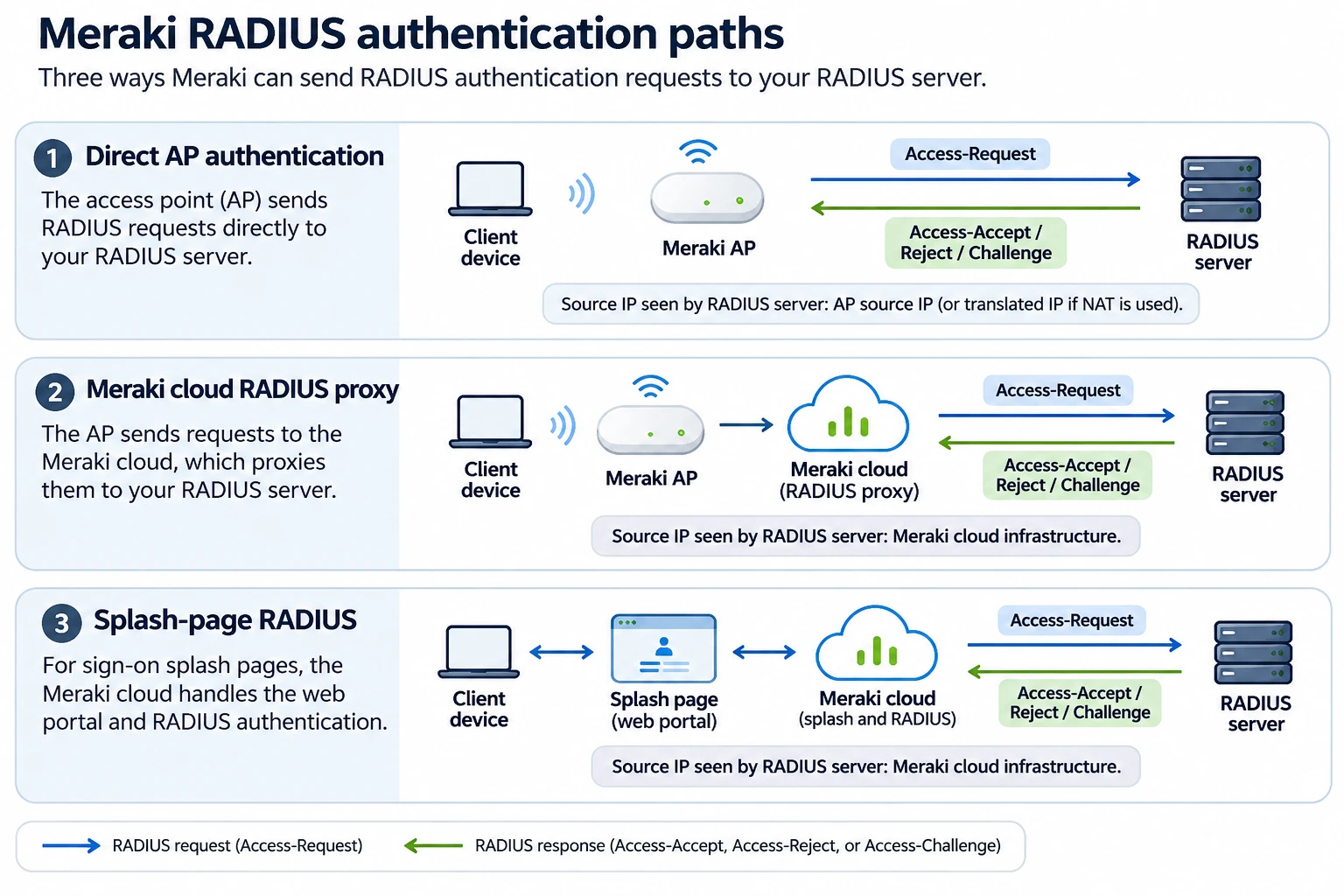 Meraki RADIUS authentication traffic paths: Depending on the authentication method and configuration, RADIUS requests may originate from individual Meraki access points or Meraki cloud infrastructure. The RADIUS server's client definitions and network firewall rules must account for the relevant traffic sources.
Supported EAP methods
Meraki supports these common EAP methods for Meraki RADIUS authentication:
PEAP with MSCHAPv2: password-based, wraps MSCHAPv2 in TLS
EAP-TTLS with PAP or MSCHAPv2: password-based, wraps the inner method in TLS
EAP-TLS: certificate-based mutual authentication
The choice among these has significant downstream consequences for identity store integration and certificate management, which are covered below.
MAC address format for MAB
For MAC authentication bypass (MAB), Meraki sends the MAC address as both the username and the password. The default format is twelve lowercase hex characters with no separators, for example aabbccddeeff. If your RADIUS server expects a different MAC address format, its authentication policy may fail to match the client.
The format can be changed on the Meraki side under the SSID access control settings, but the change applies to all clients on that SSID and needs to match what your RADIUS policy accepts.
Other capabilities
Meraki also supports:
- RADIUS Change of Authorisation (CoA) per RFC 5176
- RADIUS accounting on UDP port 1813
- RadSec (RADIUS over TLS) on TCP port 2083
Each of these is covered in a later section.
Configuring the Meraki RADIUS server connection
Meraki dashboard configuration
To configure an external RADIUS server for a Meraki wireless SSID:
In the Meraki dashboard, navigate to Wireless > Configure > Access control and select the SSID.
Under Security, choose Enterprise with my RADIUS server and select the appropriate WPA2-Enterprise or WPA3-Enterprise settings for your deployment.
Under RADIUS, add the server's IP address or hostname, authentication port (typically UDP 1812), and shared secret.
Save the configuration.
For wired 802.1X authentication on Meraki switches, configure the RADIUS server under Switching > Configure > Access policies and apply the appropriate access policy to the switch ports.
RADIUS server configuration
On the RADIUS server side, each Meraki access point that will send Access-Requests needs to be defined as a client with a matching shared secret. A minimal FreeRADIUS clients.conf entry looks like this:
This example illustrates a direct connection between a Meraki access point and the RADIUS server. Adapt the client definitions to your network topology and FreeRADIUS version. Deployments using the Meraki cloud RADIUS proxy require different source IP definitions.
The require_message_authenticator = yes setting tells FreeRADIUS to reject Access-Request packets that lack a valid Message-Authenticator attribute. This is an important protection against the BlastRADIUS vulnerability disclosed in July 2024.
Before enforcing this setting, confirm that the Meraki devices and authentication flows in your deployment support it. Packets that do not include the required attribute will be discarded.
Individual APs vs the dashboard RADIUS proxy
Meraki access points can send RADIUS authentication requests directly to your server or through the Meraki cloud RADIUS proxy. The configuration you choose determines which source IP addresses your RADIUS server must recognise as clients.
With direct authentication, the RADIUS server must recognise the access points sending requests. With the cloud proxy enabled, requests arrive from Meraki cloud infrastructure instead. Your RADIUS client definitions and firewall rules must accommodate the appropriate sources.
There is an important trade-off: Meraki's cloud RADIUS proxy does not support change of authorisation (CoA). If your authentication architecture requires the RADIUS server to disconnect or reauthenticate active sessions, use a configuration that supports CoA.
Splash-page RADIUS authentication also uses Meraki cloud infrastructure. If your deployment uses splash-page authentication, ensure your RADIUS server and firewall permit requests from the relevant Meraki cloud IP ranges.
The dashboard Test button
The Test button in the Meraki dashboard performs a RADIUS authentication exchange using PEAP with MSCHAPv2. It checks whether the RADIUS server is reachable and whether the supplied credentials can be authenticated using that method.
A successful test does not guarantee that other EAP methods, such as EAP-TLS or EAP-TTLS, will work with your production clients. In fact, the dashboard test will fail with EAP-TLS because the access point does not have the client certificate required for authentication.
Always verify your production configuration using an actual client device and the EAP method your network uses.
Server certificate for EAP
Use a server certificate issued by a certificate authority (CA) trusted by your client devices. An internal PKI is suitable, provided that clients are configured to trust the issuing CA and validate the expected RADIUS server identity.
Configure client supplicants to verify the server certificate and expected server name. Plan certificate renewals carefully to avoid authentication failures caused by expired certificates, changes to trusted CAs, or mismatched server identities.
Identity store integration
A RADIUS server on its own does not know who your users are. It consults an identity store, and the integration pattern depends on which EAP method you use.
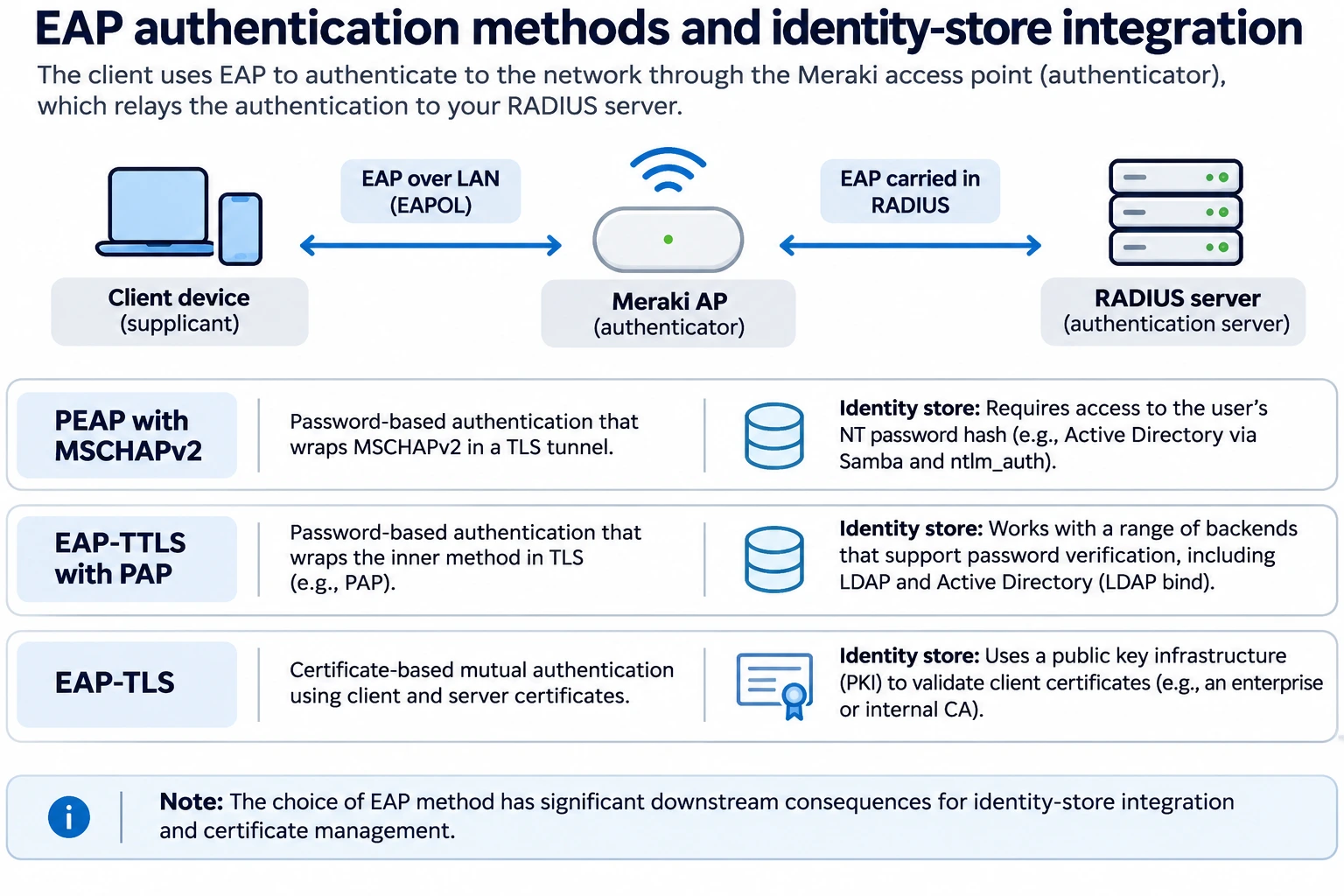 EAP authentication methods and identity-store integration: Different EAP methods require different authentication capabilities from the RADIUS server and its supporting infrastructure. PEAP/MSCHAPv2 uses challenge-response validation, EAP-TTLS/PAP supports password verification within a TLS-protected tunnel, and EAP-TLS uses client certificates for authentication.
PEAP with MSCHAPv2
To authenticate using PEAP with MSCHAPv2, the RADIUS server must validate the MSCHAPv2 challenge-response exchange. This requires access to the user's NT password hash or a backend service capable of performing the validation.
With Active Directory, this typically means connecting FreeRADIUS to AD via Samba and the ntlm_auth helper. The FreeRADIUS Active Directory integration guide covers the specifics.
PEAP with MSCHAPv2 has important implications for password storage and authentication infrastructure. MSCHAPv2 authentication requires access to an NT password hash or a backend capable of validating the challenge-response exchange. EAP-TTLS with PAP offers an alternative that can work with password-verification backends without requiring FreeRADIUS to retrieve an NT hash.
EAP-TTLS with PAP
The RADIUS server receives the cleartext password inside the TLS tunnel and can verify it against any backend that supports a password check.
LDAP bind-as-user is a common pattern: FreeRADIUS binds to LDAP or Active Directory as the user with the presented password, and success or failure of the bind is the authentication result. This approach works with LDAP directories that permit authentication through a user bind.
EAP-TTLS with PAP is a useful option when the identity backend supports password verification without requiring FreeRADIUS to retrieve an NT hash. For example, FreeRADIUS can authenticate against Active Directory using an LDAP bind, while other LDAP directories may allow it to verify passwords against stored, salted hashes.
The security implications depend on the identity backend and how credentials are stored and verified. For a more detailed discussion, see PAP vs CHAP: A complete security comparison.
EAP-TLS
The RADIUS server validates the client certificate against a trusted CA. There is no password involved.
After validating the client certificate, the RADIUS server can apply authorisation policies based on certificate attributes, such as the subject or Subject Alternative Name (SAN). Depending on the deployment, it may also consult an external identity store to determine group membership, VLAN assignment, or other access policies.
FreeRADIUS can integrate with a range of data sources, including LDAP directories, SQL databases, Redis and REST APIs. The appropriate integration depends on how user credentials, device identities, and authorisation policies are managed within your environment.
Beyond basic auth: IPSK, CoA, accounting, and RadSec
Once basic authentication works, four Meraki features are worth understanding because they solve specific real-world problems.
Identity Pre-Shared Keys (IPSK)
Identity Pre-Shared Keys (IPSK) allow different devices or groups of devices to use different pre-shared keys on the same wireless network, without requiring 802.1X authentication.
IPSK is particularly useful for IoT devices and other clients that cannot use enterprise EAP authentication.
Meraki supports IPSK with RADIUS, allowing an external RADIUS server to participate in device authentication and access policy decisions. The specific requirements depend on the IPSK authentication method and the capabilities of the RADIUS server.
For configuration details, see Cisco Meraki's documentation on IPSK with RADIUS authentication.
Change of Authorisation (CoA)
RADIUS dynamic authorisation allows a RADIUS server to change access policies or terminate active sessions. Change of authorisation (CoA) requests can update session authorisation, while Disconnect-Requests terminate sessions. Common use cases include changing VLAN assignments, responding to posture changes, and disconnecting users when their access is revoked.
Meraki listens for CoA on the AP itself, so this only works when APs are added as individual RADIUS clients, not when using the dashboard RADIUS proxy.
CoA extends RADIUS authorisation beyond the initial authentication exchange, allowing network access policies to be updated while a session is active. For more background on the underlying protocol, see How does RADIUS authorisation work?
RADIUS accounting
RADIUS accounting records session start, interim update, and stop events. Meraki sends accounting packets on UDP port 1813 with attributes like Acct-Session-Id, Acct-Input-Octets, Acct-Output-Octets, Acct-Session-Time, and Acct-Terminate-Cause.
RADIUS accounting data can provide valuable information for network operations, troubleshooting and reporting. Common use cases include:
- Usage reporting
- Session forensics
- Safeguarding audits in education
- Billing in ISP-adjacent deployments
If your environment has any of these requirements, configure your RADIUS server to capture accounting and store it somewhere queryable.
Meraki RadSec (RADIUS over TLS)
RadSec (RADIUS over TLS) protects RADIUS traffic using TLS encryption, typically over TCP port 2083. It provides an alternative to traditional RADIUS over UDP, particularly when authentication traffic must cross network boundaries or infrastructure that is not fully trusted.
Meraki supports RadSec on compatible access points and firmware versions. Before enabling it, verify that your deployment supports the feature and that your RADIUS server is configured to accept TLS connections.
On the FreeRADIUS side, this involves configuring a TLS-enabled listener and establishing the appropriate certificate trust between the access points and the RADIUS server. The exact configuration depends on the FreeRADIUS version and certificate infrastructure.
RadSec protects the communication between the network device and RADIUS server; it does not replace the EAP authentication method used by the connecting client.
For more information about transport security and RADIUS vulnerabilities, see RADIUS security best practices: How to harden your deployment.
Worth subscribing to.
Worth reading.
Our weekly newsletter covers network authentication tips, how-tos, security vulnerabilities, free resources, standards updates, and industry news. (All stuff you should stay up to date on!)
MX client VPN authentication
The Meraki MX security appliance can use an external RADIUS server to authenticate remote-access VPN users against an existing identity infrastructure.
From the RADIUS server's perspective, the MX acts as a RADIUS client, forwarding authentication requests to the configured server. The RADIUS server must recognise the MX as a client and support the authentication requirements of the VPN configuration.
The specific requirements depend on the VPN protocol and client being used. For example, Meraki's L2TP/IPsec Client VPN uses PAP authentication, which requires the RADIUS backend to verify the user's password. Other VPN configurations may have different requirements.
For deployment-specific configuration guidance, refer to Cisco Meraki's Client VPN documentation.
Troubleshooting common failures
Shared secret errors aren't always the shared secret
A shared secret error does not always mean the configured secrets are different. RADIUS authentication can also fail when packet authenticators cannot be validated or when requests and responses are not processed as expected.
Start by confirming that the shared secret matches on both sides. If the problem persists, examine the RADIUS server logs and packet exchange to determine whether requests are being received, rejected, or discarded.
Silent MAC authentication bypass failures
Meraki formats the MAC as twelve lowercase hex characters with no separators by default. If your RADIUS policy compares against AA:BB:CC:DD:EE:FF, it will not match. Normalise the format in your policy. In FreeRADIUS, either preprocess the User-Name attribute or store MACs in the same format Meraki sends.
Certificate chain issues
Certificate problems cause EAP failures on some devices and not others. This is often a difference in which intermediate certificates the client trusts.
On the server: Present the full chain (server cert plus intermediates, but not the root).
On the client: Verify the root and intermediates are in the trust store.
Certificate validation behaviour can vary between client operating systems and device configurations. When troubleshooting EAP failures, check certificate trust, certificate validity, and the requirements of the client supplicant.
"Unhealthy" RADIUS server marking
A Meraki device may report a RADIUS server as unreachable even when the server is responding to requests from other devices. This can occur because of network connectivity issues, timeouts, or differences in how individual access points reach the server.
When RADIUS Testing is enabled, Meraki devices periodically send Access-Requests using the identity meraki_8021x_test to check server reachability.
If a server is reported as unreachable, examine the FreeRADIUS logs to determine whether the test requests arrived and whether responses were sent. Check network connectivity, firewall rules, and packet captures to identify where communication may be failing.
Splash-page authentication failures after firewall changes
Splash-page RADIUS traffic originates from the Meraki cloud IP ranges, not from the AP. If your firewall permits RADIUS only from AP IPs, splash-page auth will time out with no visible error.
Check the Firewall Info page in the dashboard for the current Meraki cloud ranges and allow them.
Using debug output
For any FreeRADIUS deployment, running radiusd -X in a separate terminal while a client attempts to authenticate shows exactly what packet arrived, what policy fired, what module returned what, and what response went back.
Reviewing FreeRADIUS debug output can help distinguish between network connectivity problems, authentication failures, and policy configuration issues, making it easier to identify the underlying cause.
For a more structured way to investigate problems, the FreeRADIUS Debug Viewer organises radiusd -X output so you can search, filter, follow authentication sessions, and identify errors without manually scrolling through lengthy logs.
When do you need a dedicated RADIUS server?
Meraki's cloud authentication options can simplify network deployment and management, but organisations with more complex requirements may benefit from using a dedicated RADIUS server.
Three common scenarios are worth considering.
Multi-vendor networks
Organisations often operate a mixture of wireless access points, switches, VPN infrastructure, and other network equipment from different vendors. A dedicated RADIUS server can provide a central authentication and authorisation service across these environments, helping administrators maintain consistent policies without managing separate authentication systems.
Security and operational requirements
Enterprise environments may require detailed authentication logs, integration with existing identity infrastructure, certificate management, and granular access policies. A dedicated RADIUS server gives administrators greater control over how authentication and authorisation are implemented, monitored, and maintained.
The appropriate architecture depends on the organisation's security requirements, operational needs, and existing infrastructure.
Federation and roaming
Federated authentication environments, such as eduroam, introduce requirements beyond local network access. RADIUS proxying allows authentication requests to be routed between participating organisations while maintaining control over local network access.
FreeRADIUS supports these architectures, making it suitable for organisations that need to integrate authentication across multiple networks or identity domains.
Choosing the right architecture
The question isn't simply whether Meraki's built-in authentication options are sufficient. It's whether your authentication infrastructure can support your organisation's current requirements and future needs.
For networks requiring advanced integration, centralised policy management, or RADIUS proxying, FreeRADIUS and InkBridgeRADIUS provide flexible options backed by InkBridge Networks' expertise in authentication infrastructure.
Need more help?
If your organisation needs help integrating FreeRADIUS with Meraki equipment, troubleshooting authentication failures, or designing RADIUS infrastructure for a complex network, InkBridge Networks can help.
As the team behind FreeRADIUS, we bring decades of experience in RADIUS development, authentication protocols, and enterprise network integration.
Contact us to discuss your requirements.
Related Articles

The FreeRADIUS getting started guide
After an administrator installs FreeRADIUS for the first time, the big question is “Now what?” Most sites need complex policies, interactions with databases, and logging. Yet the documentation for the server doesn’t give detailed instructions for how to configure the server for your particular location. As a result, many administrators are left wandering around the configuration files and documentation, wondering what to do next. This FreeRADIUS getting started guide will give you the answers.

RADIUS security best practices: How to harden your deployment
RADIUS has several well-known security limitations, most of which are easy to mitigate once you know what to do. This guide walks through five common weaknesses in the RADIUS protocol and the practical steps you can take to harden your deployment against each. For a broader look at RADIUS protocol security overall, see our main guide on how the RADIUS protocol works and why it's secure.